The Product Team's Claude Code Playbook: 20 Commands Worth Learning This Sprint
If you have been getting real value from Claude Code, this is the next-level playbook. Twenty commands and keyboard moves that quietly compound your speed once they are in muscle memory.

- ● For product teams already getting value from Claude Code. The next level lives in the commands no one shows you in onboarding.
- ● 20 commands grouped by workflow: set up, get work in, manage long sessions, research and review, reusable workflows, and the cheat codes most people miss.
- ● Deep dives on /compact and /loop with tradeoffs and when not to use them.
- ● Each command comes with two or three concrete examples from product team work — spec reviews, customer research, content drafts, competitive intel.
If you have been using Claude Code for a while and getting real value, this is the next-level playbook. The first few weeks are about figuring out what works. The stage after that is the commands and keyboard moves that quietly compound your speed once they are in muscle memory.
The list below is the cheat sheet I wish someone had handed me after my first month. Twenty commands grouped around the workflows product teams live in: setting up a workspace, getting work into Claude faster, managing long sessions, doing research and review, building reusable workflows, and the keyboard moves that save the most time.
Group 1 — Set up your workspace
Four commands that turn Claude from a chat window into a tool that knows your project.
1. /init — Generate your project's CLAUDE.md
Claude reads a file called CLAUDE.md at the root of any folder as standing instructions for that project. Think of it as the briefing document Claude reads before every conversation: who the project is for, what conventions you use, what files matter, what to avoid. /init scans the folder and writes the first version for you. You edit from there.
Examples:
- Run in a folder of customer research and competitive intel. Claude generates rules like "interviews live in interviews/, use the brand name 'Atlas' not the codename 'Pluto'."
- Run in your weekly notes folder. Claude proposes a memory file that captures the meeting cadence and the people involved.
- Run in a content vault. Claude scans recent articles and proposes voice rules from the patterns it sees.
Benefit. Stops the cold-start problem. Every new conversation opens already knowing what project you are in, what files exist, and what conventions to follow. You stop pasting the same background paragraph into every prompt.
2. /memory — Edit CLAUDE.md mid-session
CLAUDE.md is not write-once. /memory opens it live; add a rule, save, and Claude picks it up on the next turn without restarting the conversation.
Examples:
- Claude keeps writing in a tone that is too casual. /memory, add: "Match the tone of exec emails in email-archive/."
- Claude treats vendor marketing pages as neutral research. /memory, add: "Treat vendor marketing as biased; require independent confirmation."
- A new naming convention emerges mid-quarter. /memory, add it, and every future conversation in the project uses it.
Benefit. Standing instructions evolve with the work. You discover the rule, you write the rule, and you never repeat it again. Over weeks, CLAUDE.md becomes a living guide to how your team works with Claude on this project.
3. /mcp — Connect your tools directly
MCP (Model Context Protocol) is the connector that lets Claude read and write to your real tools without copy-paste: Google Docs, Slack, Obsidian, GitHub, Drive, Notion, Linear, Figma, and dozens more. Set up once per machine via /mcp and OAuth. From then on Claude treats those tools the way it treats local files — readable, writable, queryable.
Examples:
- Add Google Docs. "Summarise the recurring complaints in @Customer-Interviews-Q2 by frequency and pull three quotes per theme." Claude reads directly from Drive, comments included.
- Add Linear. "Create a Linear ticket under Growth titled 'Pricing page confusion' with these three findings as the description."
Benefit. Tools become an extension of Claude. Copy-paste drops to near zero; workflows that used to need five tabs happen in one prompt.
4. /statusline — Customise your prompt bar
/statusline auto-configures a status bar at the bottom of your terminal showing context usage, current model, and rolling cost. The bar updates as you work.
Examples:
- A glance shows 78% context. Time to compact before responses slow.
- Demoing Claude to a colleague: rolling cost keeps the value conversation honest.
Benefit. Awareness of context, model, and cost without checking commands. You catch problems before they become wasted work.
Group 2 — Get work into Claude faster
Four moves that save you the most copy-paste of anything on the list. Most are keyboard reflexes, not slash commands.
5. @ file mention — Pull a local file into the prompt
Type @ in any prompt; a file picker opens. Pick a file, Claude reads it from disk.
Examples:
- @PRD-atlas-v3.md review the success metrics and flag the two most likely to be gamed in the first month.
- @PRD-atlas-v3.md @customer-research-summary.md cross-check the metrics against what users asked for. Flag mismatches.
Benefit. Faster than copy-paste, preserves formatting, and references the live file every time. If you edit the PRD and ask Claude something five minutes later, Claude reads the updated version — no stale copy floating in the chat history.
6. Paste images directly
Ctrl+V (or Cmd+V on Mac) drops a screenshot into the prompt. Claude reads charts, Figma frames, UI mocks, dashboards, and PDFs natively.
Examples:
- Paste an onboarding flow: "Three biggest friction points a first-time user would hit, ranked by drop-off likelihood."
- Paste a retention curve: "What story does this tell, and what would you investigate next?"
- Paste a Figma frame: "Suggest three layout moves to push the CTA above the fold at 1280px."
Benefit. Whole categories of visual work happen in one paste. Especially valuable for designers and researchers reading dashboards.
7. /plan (or Shift+Tab) — Enter plan mode
Plan mode puts Claude in read-only mode. It explores your project, asks clarifying questions, and proposes a step-by-step plan before changing anything. You review the plan, edit it, or reject it. Only after approval does Claude touch any files. For high-stakes documents, this is the difference between Claude as a confident assistant and Claude as a collaborator who checks before acting.
Examples:
- /plan reorganise the strategy doc around three new pillars. Claude returns the proposed restructure for review before touching the text.
- Shift+Tab, then "tighten this blog post by 20%". Claude proposes which paragraphs to cut and merge.
Benefit. No surprise edits. The default mode for strategy docs, exec memos, and customer-facing copy.
8. /btw — Quick side question
/btw opens a side prompt that does not pollute the main conversation context.
Examples:
- Mid-competitive-analysis: /btw who is the CEO of Vercel? Quick answer; main draft untouched.
- Mid-research synthesis: /btw what is the 2026 global AI infrastructure spend forecast and who published it? Cited answer, no impact on the synthesis.
Benefit. Long sessions hold focus. Side questions stop accidentally rewriting your draft.
Group 3 — Manage long sessions
Anyone doing serious work hits the context ceiling. Context is the working memory of your conversation: prompts sent, files referenced, responses given. When it fills, Claude either summarises automatically or starts forgetting. These four commands keep you in flow.
9. /compact — Summarise the conversation, keep going
When context fills, /compact collapses everything so far into a single recap and frees most of the window. You stay in the same session with the same CLAUDE.md, skills, and MCP connections loaded — only the conversation history is condensed. Pass focus instructions to control what the summary preserves.
Examples:
- 30 customer interviews loaded, context at 85%. /compact preserve the cross-interview themes, starred quotes, and open follow-ups. Synthesis continues.
- Two-hour iteration on a strategy doc, 60 turns in. /compact preserve the final structure and open decisions; drop the iteration history. Clean continuation.
Tradeoff. Compaction preserves the synthesis; the full transcript is gone. Rejected framings disappear. Soft rules you stated in chat ("never include vendor X") can vanish. The fix is to put load-bearing constraints in CLAUDE.md before you compact — CLAUDE.md survives compaction by design, while in-chat instructions do not.
When not to use. Do not use /compact to reset a confused conversation. For that, /rewind back to a good checkpoint, or /clear to start fresh. Compaction is for healthy sessions you want to keep going, not broken ones you want to escape.
Benefit. Long working sessions stop ending at the context wall. You keep one conversation going for hours by compacting at natural breakpoints — between research and synthesis, between draft and edit, between phases of a longer project.
10. /clear — Start fresh
/clear opens a brand-new conversation. The previous one is saved and can be pulled back with /resume. CLAUDE.md, skills, and MCP connections carry over; conversation history does not.
The rule of thumb: different task → /clear. Same conversation that is full → /compact.
Examples:
- Finish customer research synthesis, then start drafting the readout deck. /clear between them. No analysis bleed into the deck.
- Morning on the voice guide, afternoon on a product update email. /clear. Same vault, no leftover tone assumptions.
Benefit. Clean working memory per task. Project context carries; conversation history does not. You stop the slow degradation that comes from running too many tasks in a single long conversation.
11. /loop — Recurring tasks without you babysitting
/loop schedules a prompt to run on an interval, or self-paced if you omit one. The loop runs between your other turns and continues while your session is open, so you can work on something else while Claude handles the recurring task. Two modes:
- Fixed interval:
/loop 15m check the analytics dashboard and ping me when activation crosses 1%. Strict cadence. - Self-paced:
/loop watch the strategy doc for new comments and summarise them as they appear. Claude picks cadence based on activity. Usually cheaper.
Examples:
- Launch day: /loop 5m check feature_activation_rate; ping me at 1%. You work; Claude pings.
- Doc review across time zones: self-paced loop returns summaries when activity warrants and silence when nothing is happening.
Tradeoff. Loops burn tokens every iteration. They can stale-cache if you compacted in between (the loop's context may reference things no longer in the conversation). They stop when your session ends, which means a closed laptop ends the loop.
When not to use. For one-offs, ask once. For recurring needs longer than a day, use /schedule (cloud routines that run on Anthropic infrastructure independent of your session, so they survive your laptop closing).
Benefit. Routine monitoring stops requiring your attention. Watching a deploy go live, tracking a dashboard threshold, summarising new comments on a doc, checking whether a vendor responded to your RFP — all of it can happen in the background while you do other work.
12. /context — See where your context is going
/context shows a visual map of what is taking space — each file, tool call, and conversation chunk ranked by token count.
Examples:
- Prompts feel slow. /context shows a 60-page PRD eating 40% of the window. Drop it or move excerpts into CLAUDE.md.
- Suspect a long Google Doc tool result is dragging. /context confirms; trim or compact.
Benefit. No more guessing what is eating your context. You see the cost of every file and every long response, which makes you smarter about what to load and when to compact.
Group 4 — Research and review
Three commands that turn Claude into a second pair of eyes.
13. /deep-research — Multi-source web research with citations
Fans out searches, fetches multiple sources, cross-checks claims, and returns a cited synthesis. Closer to "spend an afternoon researching this" than a single search. Takes several minutes per question, and the depth shows.
Examples:
- /deep-research the current state of AI agent adoption in B2B SaaS, with named companies and recent surveys. Returns ten searches synthesised with inline citations.
- /deep-research what changed in the menopause-care DTC market in 2026: entrants, funding rounds, clinical claims. Defensible briefing for a client meeting.
Benefit. Cross-checked, cited, and defensible. The right tool for competitive intel, market sizing, and strategy doc evidence. The citations make the output defensible in a meeting, which a single search rarely is.
14. /review — Get a second pass on any document
Built for code review originally but works on any text. Claude reads the document carefully and flags weak reasoning, missing evidence, unclear claims, and inconsistencies. Scope it with focus instructions to get a sharper, less general read.
Examples:
- /review @customer-research-readout.md focus on whether conclusions are supported by quotes. Claude returns notes like "Conclusion 2 cites four interviews but three are from the same segment — flag this limitation."
- /review @board-update-q2.md focus on tone and clarity for a non-technical board. Flag jargon and sentences over 25 words.
Benefit. A serious second reader on work you would normally ship without one. Most useful on strategy docs, research readouts, and exec memos — anything you want to defend in a meeting.
15. /diff — See exactly what Claude changed
Shows every change line by line before you commit. Accept or reject individually.
Examples:
- Claude rewrites a brief across three files. /diff shows additions in green, deletions in red. Reject the one phrase you wanted to keep.
- "Clean up the formatting" turned into rewrites of two paragraphs. Roll back the paragraphs; keep the formatting.
Benefit. No surprises before changes commit to a doc or shared repo.
Group 5 — Reusable workflows
Three commands that turn one-off work into reusable workflows.
16. Custom skills — Reusable prompts as commands
A skill is a folder at .claude/skills/<name>/SKILL.md containing instructions for a recurring task. Run /<name> anytime to invoke. Skills travel with the project, so anyone on the team can use them. The first time you write a skill takes 20 to 30 minutes; from then on it pays back every time the work recurs.
Examples:
- .claude/skills/synth-interviews/ defines your team's coding scheme, output format, quote-pulling rules, and guardrails. Every new batch: /synth-interviews and you get a synthesis in your exact format.
- .claude/skills/competitor-card/ defines the card format (positioning, pricing, GTM, recent moves, sources). /competitor-card https://example.com visits the site and fills the card.
- .claude/skills/exec-brief/ defines the format and tone for executive briefings. /exec-brief @raw-research.md produces a one-pager in the right shape every time.
Benefit. Your team's best prompts become commands. Stops the "I had a great prompt last month, let me find it in Slack" cycle. Skills compound: the better they get, the less your team re-explains how to do recurring work.
17. /fork — Spawn a background subagent
New in 2026. /fork sends a task to a parallel Claude subagent and lets your main conversation keep going. The subagent works in the background and reports back when done. Different from /loop: one bigger task running in the background, not one prompt on a schedule.
Examples:
- Drafting a press release. /fork research what comparable companies announced this week and surface anything worth referencing. Twenty minutes later the research lands; weave it in.
- Reviewing a competitor pricing page. /fork pull Wayback Machine versions from the last 12 months and summarise the changes. Claude digs while you focus on today's page.
Benefit. Parallel work. You stop choosing between "draft now" and "research first." Good for anything where the research and the writing can happen at the same time.
18. /insights — Audit your own Claude usage
/insights analyses your sessions over the last 30 days and reports patterns: where you spend time, where you hit friction, which commands you use and which you do not, and where prompts went sideways. Most people use Claude on instinct and never look at the data.
Examples:
- Discover 40% of your time is in a "draft something" loop without /plan first. That explains the rewrites.
- Discover you have never used /loop despite hours of weekly dashboard-checking. Five hours of weekly work to automate.
Benefit. Functions as a personal Claude coach. Most people use the tool on instinct; the biggest gains live in noticing the patterns you have stopped seeing. /insights tells you what to change in your own habits.
Group 6 — Cheat codes most people miss
Two keyboard moves most people never use, and both save more time than any single slash command.
19. Esc — Interrupt without losing work
Hit Esc while Claude is responding and it stops mid-turn. Everything done so far is preserved. Ask a follow-up, add a constraint, or redirect. Claude does not mind being interrupted, and you will get a better answer faster by stopping early than by waiting for the wrong one to finish.
Examples:
- Long competitive analysis. Three sentences in, you forgot the regional focus. Esc, "focus on EMEA only," continue.
- "Summarise these 15 interviews" — two paragraphs in you want it structured by theme. Esc, "restructure by theme."
Benefit. Stops the "wait for the wrong answer" tax. You save tokens and minutes on responses you already know you do not want. Most people sit through bad responses because interrupting feels awkward; Esc is the polite, lossless interruption.
20. /rewind — Go back to a checkpoint
/rewind jumps back to an earlier turn. Claude shows you the history; you pick where to land. Everything after that point undoes.
Examples:
- Three turns ago Claude had a sharp draft. "Make it punchier" lost the structure. /rewind to the sharp draft; try "tighten the third sentence" instead.
- Ten minutes of refining customer copy gets flattened by one bad prompt. /rewind to the refined version; write a more specific follow-up.
Benefit. The undo button you wished a chat tool had. Stops the "I lost the good version" problem. Particularly valuable for writing tasks where you want to explore a few versions and come back to the best one.
What to do next
This is a snapshot. Anthropic ships new Claude Code commands almost every release, and the most useful ones tend to show up in the changelog before any guide writes about them. Run /release-notes to see what is new.
The commands above are the leverage moves I see used most, but LLM harnesses are capable of much more than any 20-item list. The bigger upside is in trying complex, multi-step tasks you have always tackled manually — a quarterly business review draft, a research synthesis across 40 transcripts, a competitive intel pass across ten companies — and giving them to Claude end-to-end. The first attempt teaches you what is possible; the next attempts get faster as you learn what to ask for and where to step in.
Related from Product Impact:
- The UX Researcher's Guide to Claude, Claude Cowork, and Claude Code — the foundational guide for researchers using the full Claude product line.
- The Cognitive Shift Every UX Researcher Needs to Make — what changes about the role when AI joins the work.
- What UX Research Looks Like When Context Becomes the Engine — Part three of the UX Researcher's AI Toolkit, on what near-infinite context unlocks.
- Playbook for Knowledge Workers to Survive the AI Jobpocalypse — operational playbook for senior knowledge workers navigating AI-driven org redesign.
- How to Measure AI Product Impact: The Bullseye Framework — for product teams shipping AI features.
Bookmark this piece. Come back when Anthropic ships the next batch.
How helpful was this article?
Share this article
Latest Episodes ›
All episodes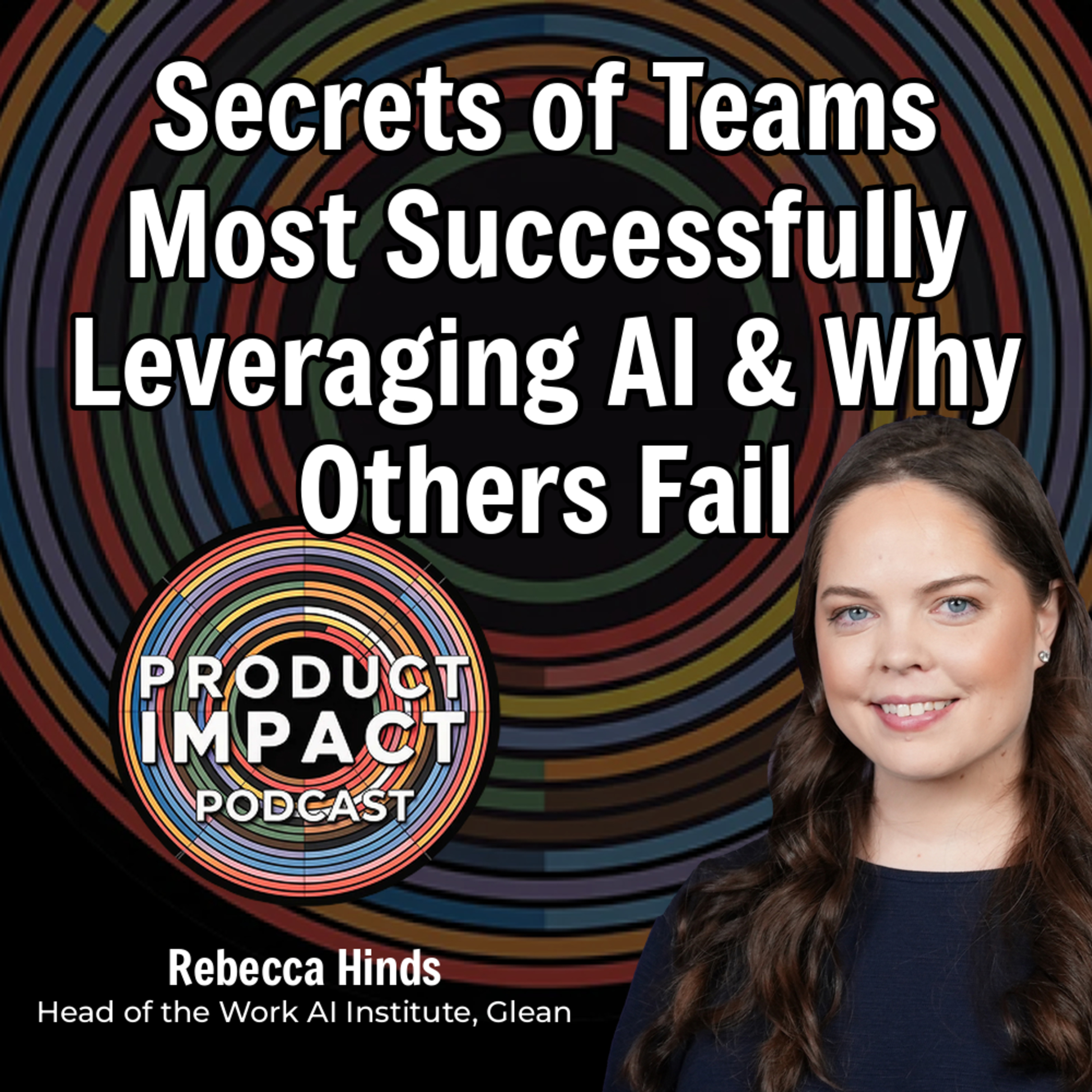
22. Secrets of Teams Most Successfully Leveraging AI & Why Others Fail (Rebecca Hinds, Glean)
![21. Career Reinvention in the Age of Agentic AI [Christian Crumlish]](https://d3t3ozftmdmh3i.cloudfront.net/staging/podcast_uploaded_episode/40697999/40697999-1788965600708-228665e06d0cd.jpg)
21. Career Reinvention in the Age of Agentic AI [Christian Crumlish]
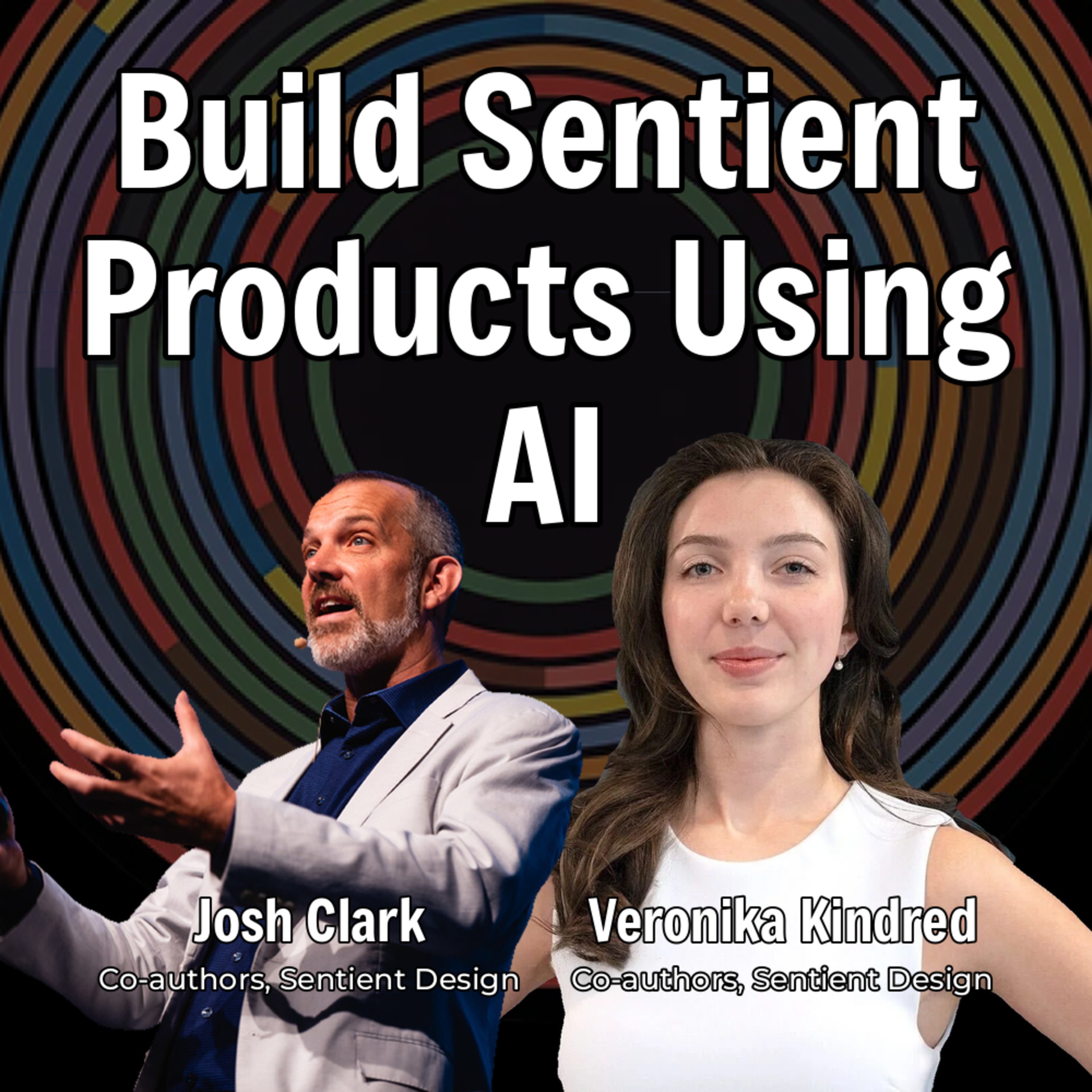
20. AI Shouldn't Be Like Bolting a Spoiler on a Crummy Honda (Sentient Design Authors Josh Clark & Veronika Kindred)
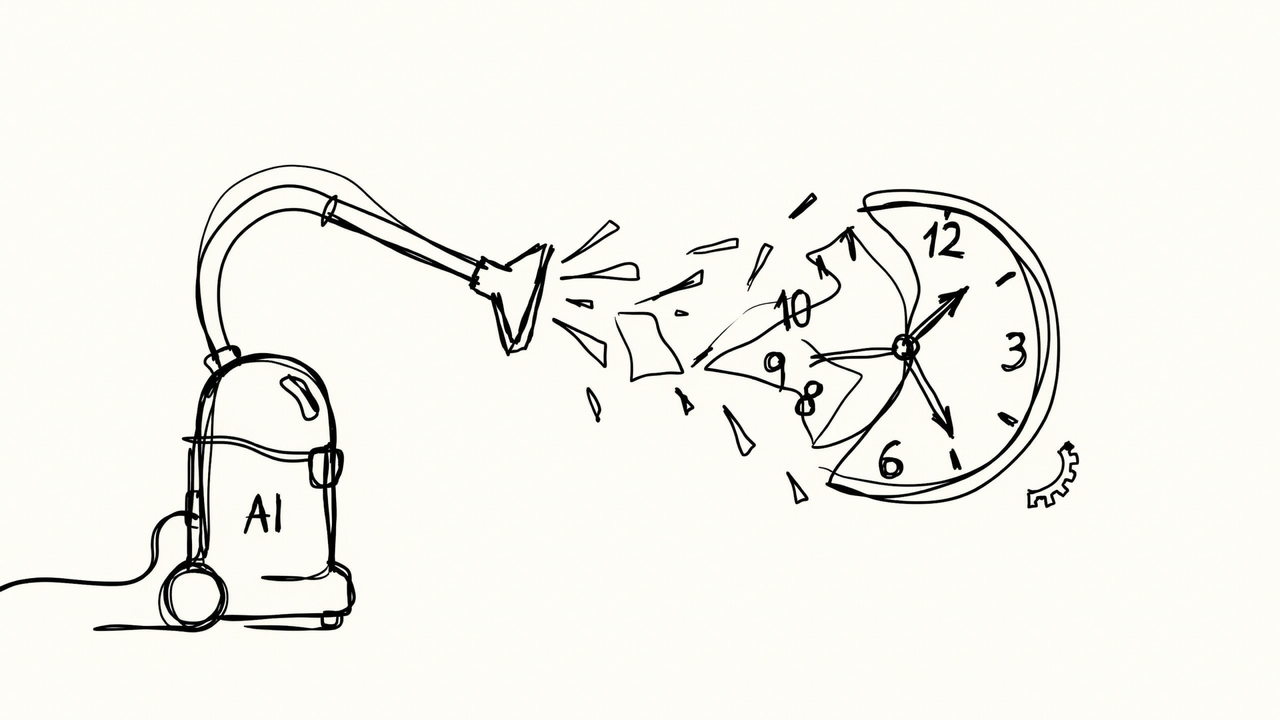
The Time-Suck Era of AI Is Ending. Design Decides What Comes Next.

Your Approvals Are Teaching AI to Skip You
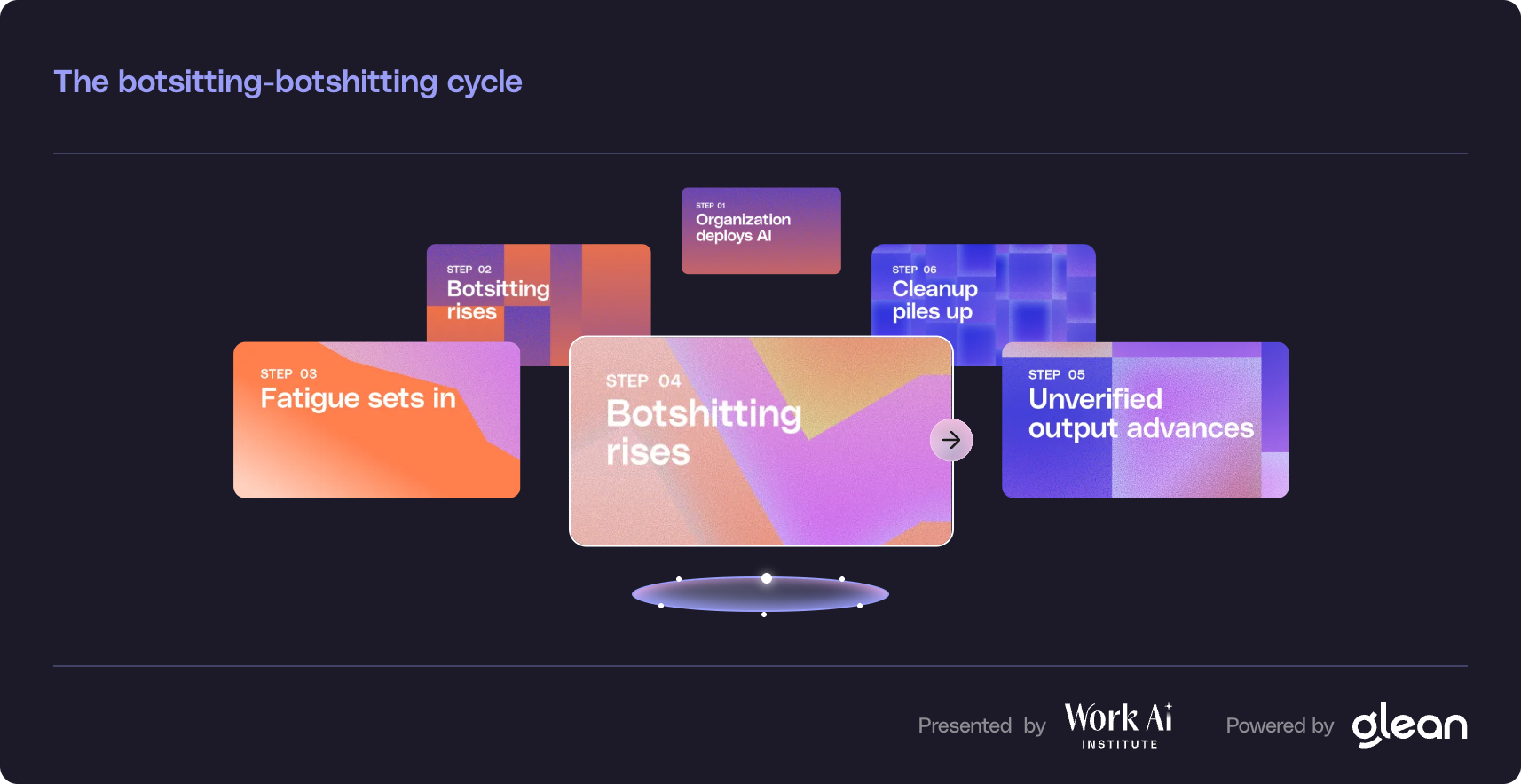
New Report Says You're Wasting More Time Botsitting Than Getting Value from AI
The UX Researcher's Guide to Claude, Claude Cowork, and Claude Code

WTF is an AI-native org anyways? Let's compare Airbnb & Meta's opposing plans.

Future of UX Research: Guide for How UX Researchers Can Protect Their Jobs & Careers
Product Impact Newsletter
AI product strategy delivered weekly. Free.